
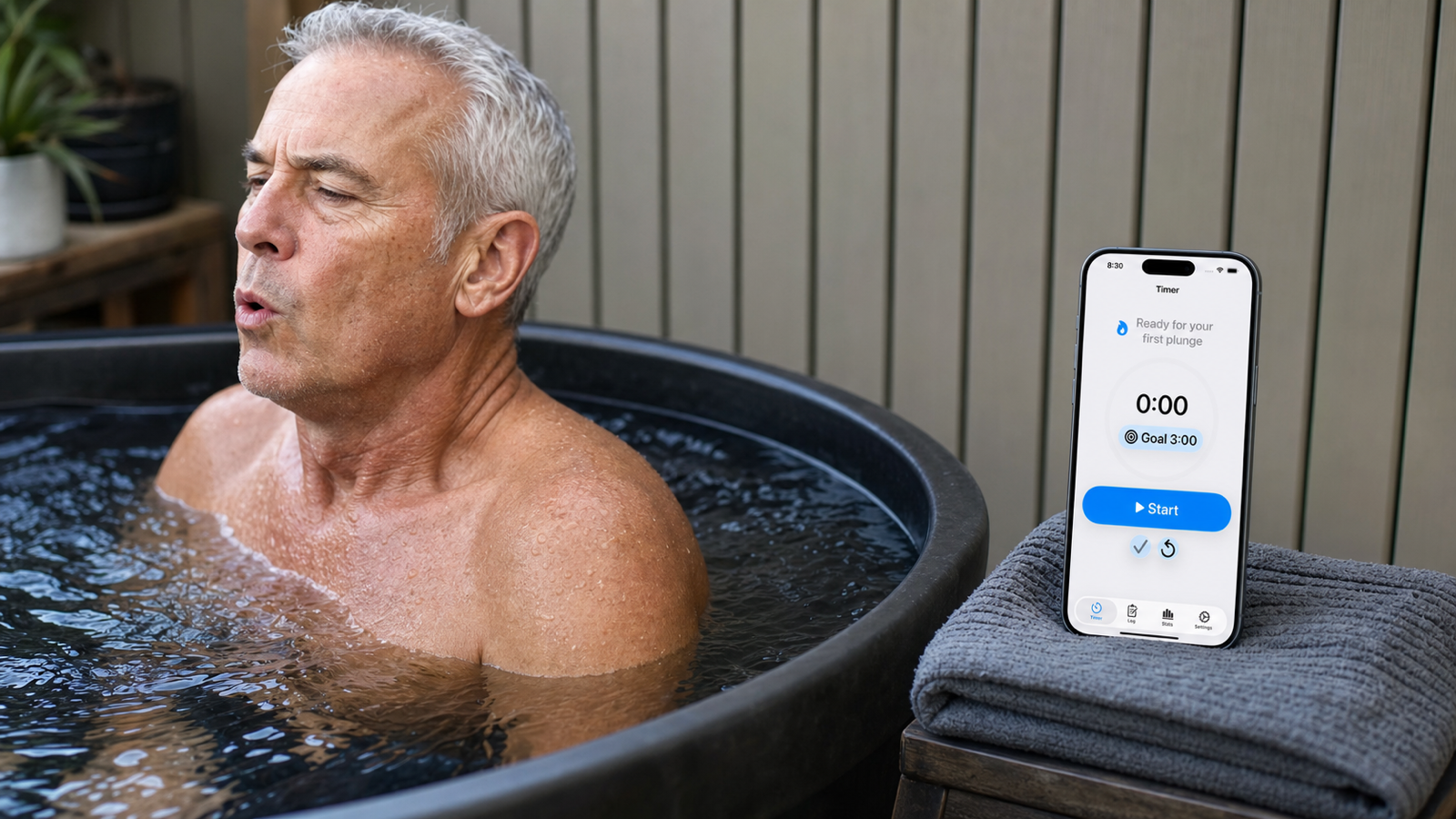
Because the app is built with native iPhone interface patterns and a simple tab structure, it can work with important iPhone accessibility features such as VoiceOver, Voice Control, larger text settings, dark appearance, non-color cues, Reduced Motion, and Siri or App Shortcuts for supported timer actions.
The practical goal is simple: the app should be usable when you are preparing for a cold plunge, sitting near water, finishing a session, or reviewing your history later. Important information should not depend only on a small visual detail, a decorative icon, or a color change.
Why accessibility matters for a cold plunge timer
A cold plunge timer is different from many casual apps because the user may be wet, cold, distracted, wearing gloves, standing near water, or trying to avoid unnecessary taps.
That makes accessibility practical. Clear labels help VoiceOver users understand the timer state. Visible button names help Voice Control users say what they want to tap. Larger text and scrolling help when a screen has more content. Dark appearance helps users who prefer a lower-light interface. Non-color cues matter because a routine should not depend on whether someone can distinguish one accent color from another.
For this kind of app, accessibility is also good everyday design. A clear Start button, readable elapsed time, meaningful stats, and a simple log help every user, not only users with accessibility features enabled.
VoiceOver-friendly timer information
VoiceOver support starts with making the important timer information understandable without requiring the user to interpret the full visual layout.
In Cold Plunge Timer & Log, the timer screen exposes key information as text and accessible values. The elapsed timer has an accessibility label and a spoken duration value, so a displayed time like 0:45 can be represented as a more natural duration. The goal duration control also exposes a clearer label rather than relying only on a compact visual chip.
The main timer actions use user-facing names:
- Start
- Pause
- Resume
- Finish
- Reset
The app also hides some decorative symbols from accessibility when adjacent text already carries the meaning. That reduces repeated announcements and keeps VoiceOver focused on what the user can act on or understand.
For stats, the app groups metric tiles and progress rows into useful summaries. Current streak, total sessions, total cold time, average duration, and other stats should be understandable through labels and values, not only by looking at the screen.
Voice Control and visible control names
Voice Control works best when controls have clear visible labels and accessible input labels. A cold plunge timer should not require the user to guess a hidden command.
Cold Plunge Timer & Log uses visible tab names such as Timer, Log, Stats, and Settings. The app also exposes input labels for key tab items and timer controls where appropriate. That helps spoken commands map to the app's visible structure.
Voice Control is separate from Siri and App Shortcuts. Voice Control is an accessibility feature for controlling the visible interface. Siri and Shortcuts are system automation surfaces for actions such as starting or finishing a timer. Both can be useful, but they are not the same thing.
Larger text and readable layouts
Cold Plunge Timer & Log uses native iPhone text styles across much of the app and includes scrollable layouts where screens need more vertical room. The timer screen also adjusts spacing and timer sizing for accessibility text sizes.
That matters because a timer app should stay readable at a glance. The elapsed time is central to the screen, and supporting labels should remain understandable without forcing the user to decode tiny text.
Dark appearance
The app includes an appearance setting with System, Light, and Dark options. When set to System, it follows the iPhone appearance preference. When set to Dark, the app can use a dark interface even if the rest of the system setting differs.
For cold plunge use, dark appearance can be practical. Some people plunge early in the morning, late in the evening, or in dim indoor spaces. A dark interface can reduce brightness while keeping timer and session information available.
Contrast and non-color cues
Good tracking should not rely only on color.
Cold Plunge Timer & Log uses text labels, icons, selected states, grouped summaries, and visible values to communicate meaning. Metric tiles include labels and values. Session rows combine text details. Timer controls use recognizable labels and symbols.
The app's blue accent makes the interface feel focused and consistent, but the app should not require the user to understand blue versus gray as the only signal. In the core flows, important information is also available through text, layout, shape, icon, control state, or accessibility value.
Reduced motion and calm interaction
Cold Plunge Timer & Log is intentionally not a game-like app. The main experience is a timer, a log, and stats, so the interface is designed to stay focused.
When Reduce Motion is enabled on iPhone, the timer ring remains understandable without relying on animated motion as the primary cue. The elapsed time, goal duration, timer state, and controls are still available through text and accessible labels.
The important product point is that the app does not depend on elaborate animations to be useful. Duration, goal, session details, notes, and stats remain text-based and reviewable.
Siri and App Shortcuts can reduce touch interaction
Cold Plunge Timer & Log supports Siri and App Shortcuts for timer actions. This can be useful when you want a more hands-free workflow.
Supported shortcut-style actions help start or finish a cold plunge timer through system actions rather than requiring several taps inside the app. This is not the same as Voice Control, but it can help users who prefer voice-based or automation-based flows.
The app keeps this focused. It does not try to automate medical decisions, safety guidance, or workout advice. The shortcut support is about timer control.
Privacy is part of accessibility too
Privacy is not usually listed as an accessibility feature, but it affects whether people feel comfortable using an app.
Cold Plunge Timer & Log is designed around a local-first direction. The app does not require an account, does not show ads, and does not use advertising tracking. The core app data is about your own routine: timer sessions, water temperature, notes, history, stats, and streaks.
For an accessibility-focused user, this matters because support should not come with extra account setup or unnecessary tracking. You can read the Privacy Policy or contact Support for more detail.
What the app does not do
Cold Plunge Timer & Log is not a medical device. It does not diagnose, treat, prevent, or monitor a medical condition. It does not decide whether cold exposure is appropriate for you.
The app also does not include video content that requires captions or audio descriptions. Its core experience is timer, log, stats, settings, and App Shortcuts.
If you use accessibility features heavily, the best practical test is still to try the exact flow you care about: start a timer, pause or resume, finish, save a session, review logs, check stats, and adjust settings.
What to check in your own setup
If accessibility is important to your routine, check the app with your actual iPhone settings:
- VoiceOver enabled
- Voice Control enabled
- larger text sizes
- dark appearance
- color filters or differentiate-without-color preferences
- Reduce Motion
- your preferred Siri or Shortcuts setup
Then test the simple cold plunge workflow:
- Open the Timer tab.
- Start the timer.
- Pause or resume if needed.
- Finish the session.
- Save the session details.
- Add water temperature and notes.
- Review Log and Stats.
Safety note
Cold exposure is not appropriate for everyone. This article is not medical advice, diagnosis, treatment, personalized safety guidance, or emergency support.
Cold water can stress breathing and the cardiovascular system, especially with sudden immersion, very cold temperatures, longer exposure, open water, existing medical conditions, or high cumulative stress. If you are unsure whether cold exposure is appropriate for you, speak with a qualified health professional.
Do not rely on an article, app, timer, accessibility feature, shortcut, or tracking system during an emergency.
FAQ
Is Cold Plunge Timer & Log accessible with VoiceOver?
The app is designed with VoiceOver-friendly labels, values, grouped summaries, and hidden decorative elements in key flows such as Timer, Log, Stats, and Settings.
Can I use Voice Control with the app?
Yes. The app uses visible labels and input labels for important controls such as tabs and timer actions, which helps Voice Control map spoken commands to visible controls.
Does the app support larger text?
The app uses native iPhone text styles and scrollable layouts in core flows, with timer layout adjustments for larger accessibility text sizes.
Does the app have a dark mode?
Yes. Cold Plunge Timer & Log includes System, Light, and Dark appearance options, so the app can follow your iPhone setting or use a chosen appearance.
Does the app rely only on color?
No. The app pairs color with text, icons, grouped summaries, selected states, and accessible values so important timer and stats information is not communicated by color alone.
Does Cold Plunge Timer & Log give medical advice?
No. The app is a timer, log, and stats tool. It does not provide medical advice, diagnosis, treatment, personalized safety guidance, or emergency support.