
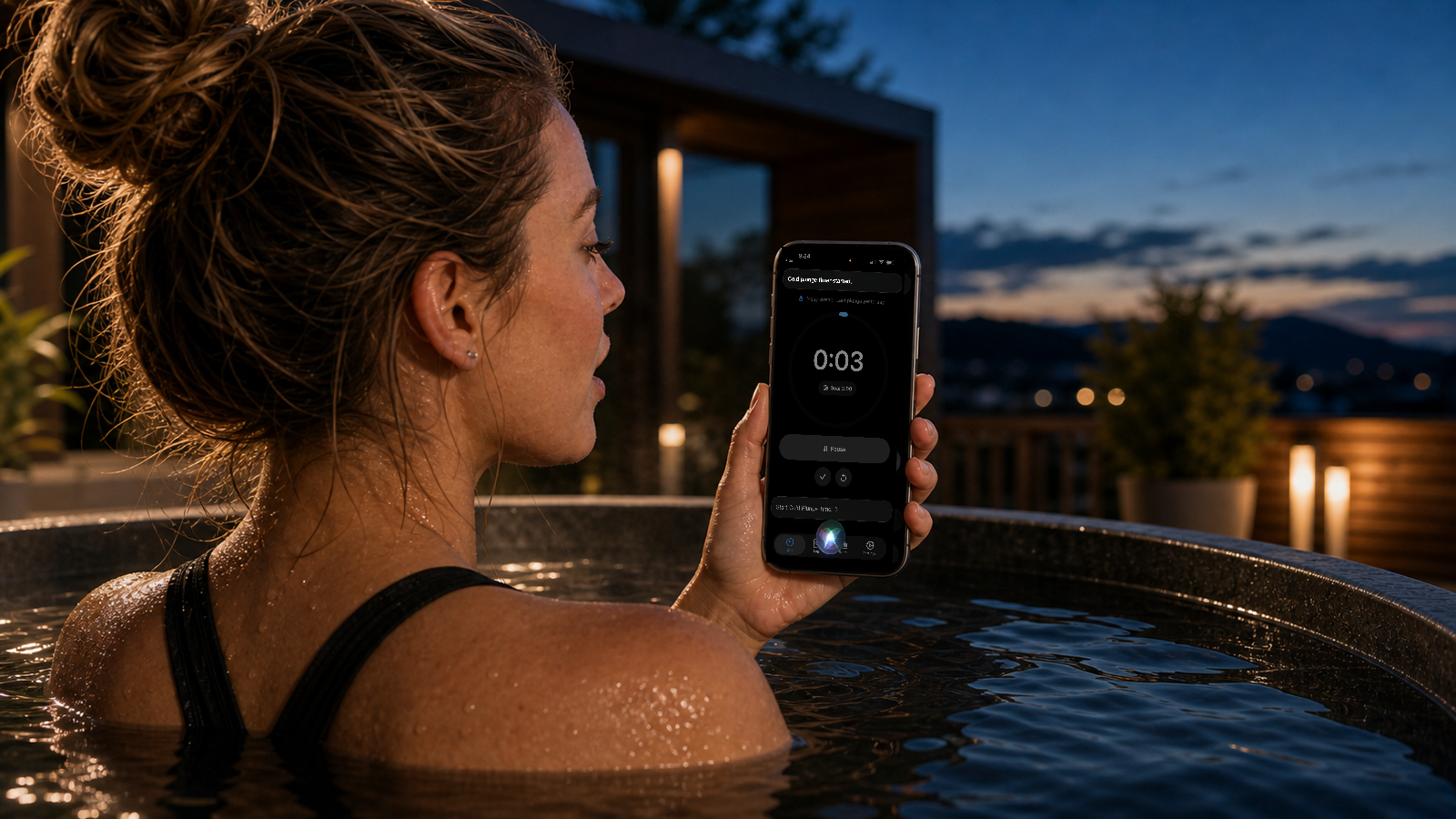
A hands-free cold plunge timer should do a small number of things well: start the session, keep the timer visible, finish the session, and preserve a clean path into saving the log. The goal is not to automate the entire routine. The goal is to remove friction at the moments when touching the phone is awkward.
This guide explains what the Siri and Shortcuts support in Cold Plunge Timer & Log does, what it does not do, and how it fits into a simple cold plunge or ice bath routine.
What the Siri shortcuts can do
The app exposes two focused timer actions through iPhone Siri and App Shortcuts:
| Shortcut action | What it does |
|---|---|
| Start Cold Plunge Timer | Starts the timer using your default goal duration and opens the app to the timer. |
| Stop Cold Plunge Timer | Finishes an active timer and opens the save session flow. |
| Finish Cold Plunge Timer | Uses the same finish behavior as stop, so the session can be reviewed before saving. |
The built-in shortcut phrases include examples like “Start cold plunge timer in Cold Plunge Timer & Log,” “Stop cold plunge timer in Cold Plunge Timer & Log,” and “Finish my cold plunge timer in Cold Plunge Timer & Log.”
Why hands-free timing matters
Cold plunge timing often happens at an awkward moment. Your hands may be wet, the phone may be nearby but not in your hand, or you may already be in the tub when you realize the timer has not started.
A Siri cold plunge timer reduces that friction. You can start the timer without tapping through the app, then focus on the session. When the session is done, the finish shortcut moves you into the save session flow instead of leaving the result as a number you have to remember.
For a broader comparison of timer tools, read Cold Plunge Timer vs Stopwatch.
How starting from Siri works
When you start the timer from Siri or App Shortcuts, Cold Plunge Timer & Log uses your default goal duration and opens the app to the timer. That keeps the live timer visible instead of hiding the routine inside an invisible automation.
If a timer is already running, the start shortcut does not reset the active session. If the timer is paused, it does not create a duplicate session. The shortcut simply brings you back to the timer state already in progress.
That behavior matters because an accidental second voice command should not wipe out the session you already started.
How stopping or finishing works
When an active timer is stopped or finished through Siri, the app finishes the timer and opens the save session flow. From there, you can review the duration and add details such as water temperature, session type, and notes.
If there is no active timer, the finish shortcut does not create a zero-second session. It routes back to the timer instead.
This is intentional. A cold plunge log is more useful when the saved data is deliberate. The app helps with hands-free timing, but it still gives you a chance to review the session before it becomes part of your history.
Using it for ice baths
The same timer flow works for ice baths. The voice action starts or finishes the timer, and the session can be saved with the appropriate session type afterward.
That means the app can work as an ice bath timer with Siri without needing a separate ice bath mode just to measure time. The useful distinction happens in the log, where session type, temperature, and notes give the timer result context.
For setup differences, read Ice Bath vs Cold Plunge.
What to log after a hands-free timer
Siri can reduce the friction of starting and finishing, but the useful record still comes from the session details you save afterward.
For most cold plunge or ice bath sessions, useful fields include:
- duration
- water temperature
- date and time
- session type
- short notes
- streaks and progress over time
If you want the full tracking framework, read How to Track Cold Plunge Sessions or the complete Cold Plunge Tracker App guide.
Privacy-first timer control
Cold Plunge Timer & Log is designed around a privacy-first posture:
- no account
- no ads
- no advertising tracking
- local-first app data
Siri and App Shortcuts are used for timer control. The app does not need an account system or advertising profile to start a timer, finish a timer, or keep a local session history.
You can read the Privacy Policy or contact Support for more detail.
Common mistakes
The first mistake is expecting voice control to replace judgment. Siri can start or finish a timer, but it cannot decide whether the session is appropriate, safe, or worth continuing.
The second mistake is saving no context after the timer. A duration is useful, but it becomes more useful when paired with water temperature and a short note.
The third mistake is over-automating the routine. For most people, the useful automation is simple: start hands-free, finish hands-free, then review before saving.
Safety note
Cold exposure is not appropriate for everyone. This page is not medical advice, diagnosis, treatment, personalized safety guidance, or emergency support.
Do not rely on Siri, Shortcuts, an app, a timer, or an article during an emergency. Cold water can stress breathing and the cardiovascular system, especially with sudden immersion, very cold temperatures, longer exposure, open water, existing medical conditions, or high cumulative stress.
If you are unsure whether cold exposure is appropriate for you, speak with a qualified health professional.
FAQ
Can I start a cold plunge timer with Siri?
Yes. Cold Plunge Timer & Log supports a Siri/App Shortcuts action for starting the cold plunge timer on iPhone.
Can Siri stop or finish the cold plunge timer?
Yes. The app supports a stop or finish timer shortcut. When an active timer is finished, the app opens the save session flow.
Does starting from Siri reset an active timer?
No. If a timer is already running, the start shortcut brings you back to the timer without resetting the active session.
Can I use it as an ice bath timer with Siri?
Yes. The timer can be used for ice baths too, and saved sessions can be labeled by session type in the app.
Does the app save sessions automatically from Siri?
No. Finishing the timer opens the save session flow so you can review or add details intentionally.
Does the app require an account?
No. Cold Plunge Timer & Log is designed with no account, no ads, no advertising tracking, and local-first app data.